
Speak AI for Windows
Record Zoom, Teams, Meet and Slack calls with no bot in the meeting. Dictate into any app for free, right on your PC.
Free. Needs Windows 10 (22H2) or Windows 11, 64-bit. On a Mac? Get Speak AI for Mac.
This app is for Windows PCs. On your phone, get the Speak AI app instead.
This app is for Windows PCs. On your phone, get the Speak AI app instead.
On a Mac? This app is for Windows. Speak AI for Mac does the same things.
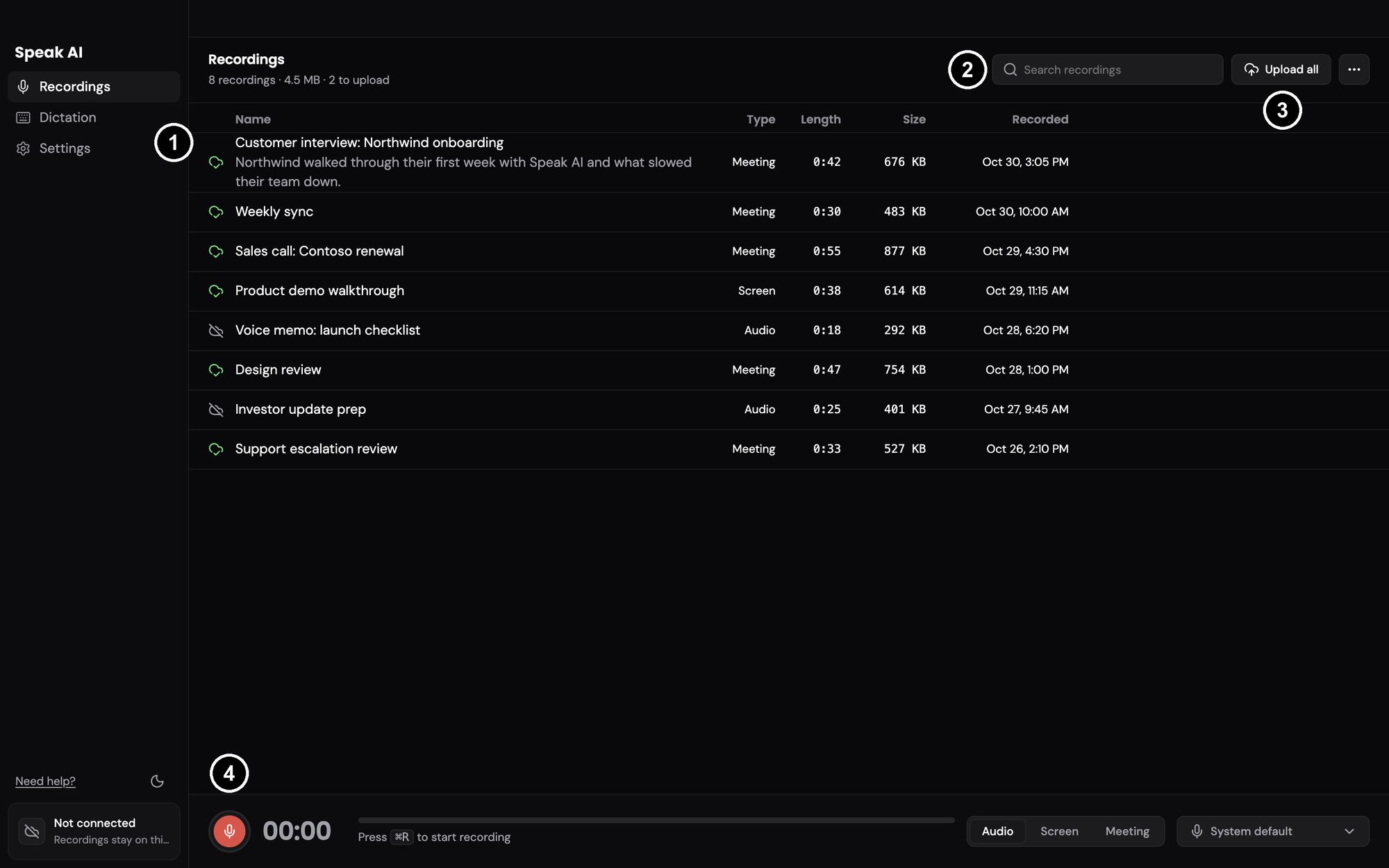
- 1Every call and memo saved on your PC
- 2Search every recording
- 3Upload to Speak AI when you choose
- 4Start recording in one click
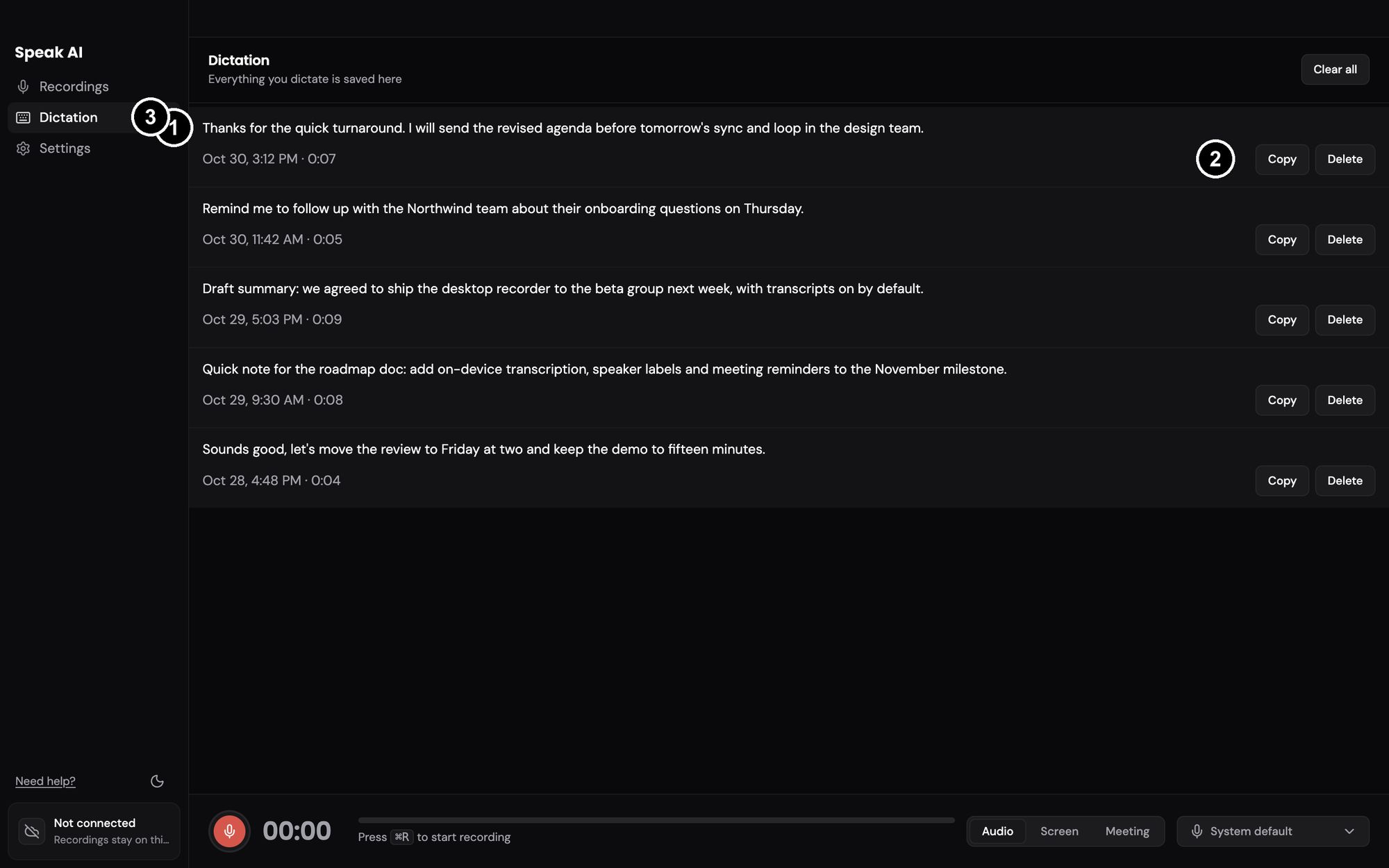
- 1Everything you dictate is saved here
- 2Copy any dictation again
- 3Dictate in any app with Ctrl+Alt+D
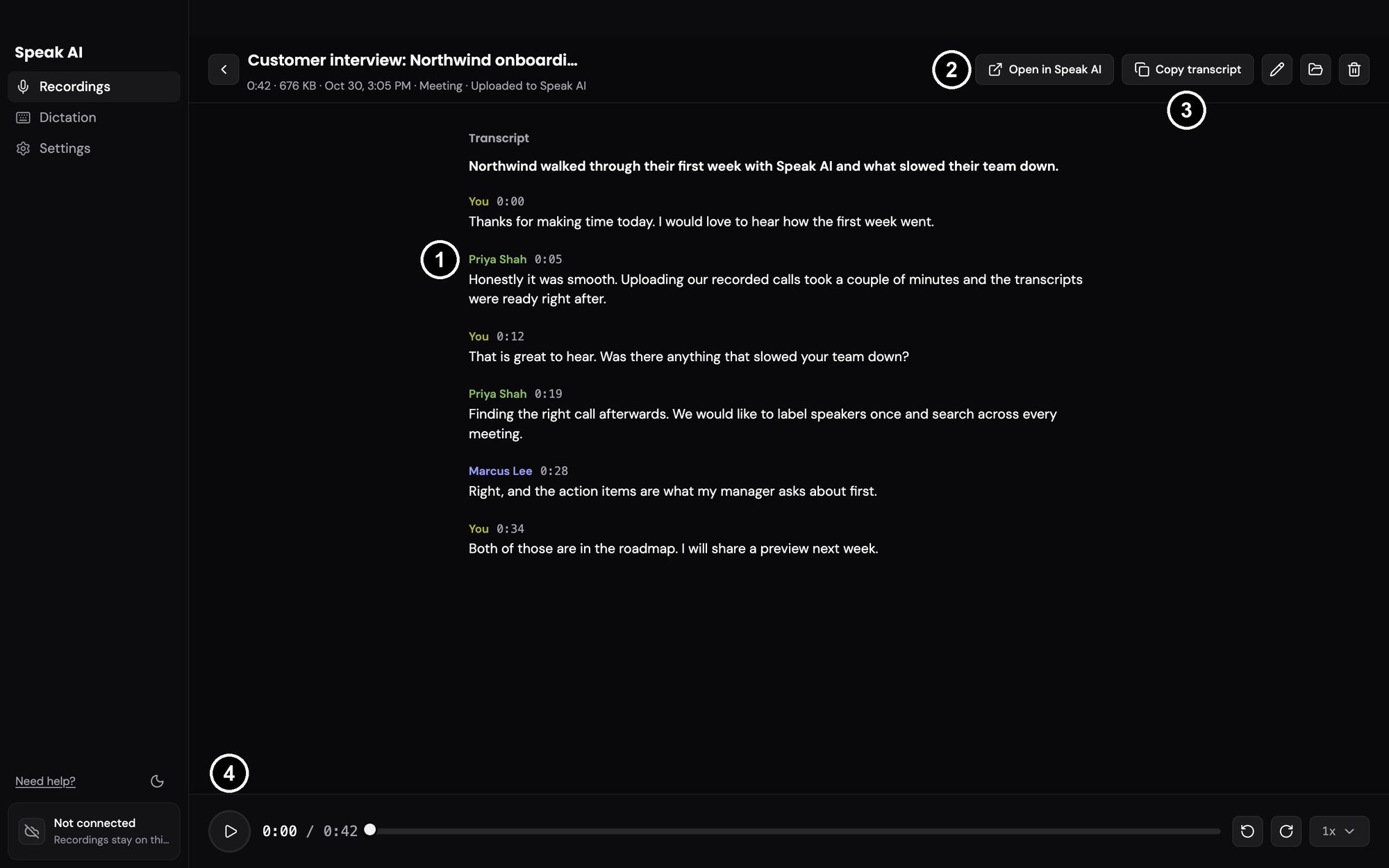
- 1Speakers labelled in the transcript, and you can rename them
- 2Open in Speak AI for AI chat, summaries and dashboards
- 3Copy the whole transcript
- 4Play it back at your own speed
Screens shown from the Mac app with sample recordings. The Windows app has the same screens.
Record calls with no bot
Speak AI records the call audio and your microphone from your PC. No notetaker joins the meeting, so nobody sees a bot in the room.
- Zoom
- Microsoft Teams
- Google Meet
- Slack huddles
- Webex
- Discord
- RingCentral
- It notices when a call starts and asks if you want to record. Or set it to record on its own.
- It records the other people on the call and you, without echo.
- Recordings save on your PC first. Upload to Speak AI when you are ready.
Free dictation in any app
Press the shortcut in any app, talk, then press it again. Your words appear where your cursor is: email, docs, Slack, your CRM.
- Dictation runs on your PC with Whisper, free on every plan.
- It works offline once the on-device model is downloaded in setup.
- Every dictation is kept in the app, so you can copy it again later.
- Change the shortcut in Settings if Ctrl+Alt+D is taken.
Why teams pick it
No bot in the meeting
Record client calls and interviews without a notetaker joining. The call feels like a normal conversation.
Free dictation
On-device dictation costs nothing and has no account requirement. Talk instead of typing all day.
Fewer credits
Uploading a call you recorded on your PC uses fewer credits than sending the Speak AI meeting assistant.
Your files, on your PC
Recordings stay on your PC until you upload or turn on Sync. They are kept until you delete them.
Works offline
Record and dictate on a plane or a bad connection. Uploads wait and send when you are back online.
Signed by Speak AI
The installer is signed by Speak AI Inc. and installs for your user, with no admin prompt.
Already use Speak AI?
Sign in and the Windows app becomes the fastest way to get calls into your workspace.
- Upload recordings to the folder you choose, or turn on Sync to send them on their own.
- Open any recording in Speak AI for summaries, AI chat and dashboards.
- See a live transcript while the meeting runs.
- Your team uses Macs and PCs? Everyone records into the same Speak AI workspace.
Get started in a few minutes
- Run the installerIt installs for your Windows user, with no admin password needed.
- Allow the microphoneSpeak AI asks for it the first time you record or dictate.
- Get the free on-device modelSetup offers it in one click. It powers free dictation and works offline.
- Press Ctrl+Alt+DTalk, press it again, and the text appears in the app you are using.
Windows 10 (22H2) or Windows 11, 64-bit.
Questions
Is it free?
Yes. The app is free, and dictation on your PC is free on every plan. Uploading recordings to Speak AI for transcription and analysis uses credits from your Speak AI plan.
Do I need an account?
No. You can record and dictate without one. Sign in when you want to upload to Speak AI or see live transcripts.
Which calls can it record?
It detects Zoom, Microsoft Teams, Webex, Slack huddles, Discord and RingCentral, and Google Meet in your browser. It records the call audio plus your microphone, with no bot joining.
Does it work offline?
Yes. Recording works offline, and dictation works offline once the on-device model is downloaded in setup. Uploads wait until you are back online.
Which PCs does it run on?
Windows 10 (version 22H2) or Windows 11, 64-bit.
How do I get the download?
Click Download for Windows on this page. You get one installer file (.exe); open it and follow the steps.
Is there a Mac version?
Yes. Speak AI for Mac runs on Macs with Apple silicon and macOS 14.2 or later.
Where do my recordings go?
They save on your PC first. They upload to your Speak AI workspace only if you turn on Sync or press Upload.