In this video, I’m going to show you how you can actually use the sentiment analysis in both audio and video files. So starting from the login screen, all I have to do is sign in, taken to the dashboard and as always I’m sort of choosing the video and on let’s see if I can find a little bit longer video. This is awesome. Actually this is a video of a great friend who left some feedback for us and what I can actually do. We can see the insights here, but now I can go into the area. That is labelled sentiment. And what we’re actually seeing is a chart, and in this chart, we can actually see sort of the breakdown of sentiment over time.
And then if you see I can hover, you’ll actually see the areas that are positive an negative, so you know really we can start to see some peaks of what it is. I might have to zoom in to get that and to show you the zoom in all I have to do is go here and then I can start to see. Basically, starting the things that are starting to be more positive or negative, so maybe there’s something you know it wasn’t really committed.
Could start to sort of zoom in on different areas and actually see that throughout the video, and then I can drag back across here and actually bring it all the way out. So really good for identifying you know moments of positively and negatively. Throughout the video. The next step is actually just being able to let you click and then you will navigate through to that specific moment and then the other part here is actually the score area and what you can do is actually see how we’re measuring the sentiment.
And basically what we see is little sad faces for more negative sentiment. And then if I sort here, you can actually see more positive faces. So wow, this is cool and it brought analytics is good. You know we started to see some of the happier sentences. And then if I go back this way, actually go by order and then this is now the most negative ones. So I you know some swear words.
Sorry for anyone watching this, but this is really the way that we’re using sentiment. For audio and video and you can see the video start to populate here and some stuff that he’s looking at in our own app and the next part again will be the clickable piece. So as I go and see.
Oh not the greatest picture I can click and it will navigate through to that specific moment and that will allow you to then jump around much quicker into positive and negative moments in the video, so I hope you find this valuable. We’re going to increasingly improve the sentiment analysis algorithms so that they are more accurate for you and then provide a lot more. New once in the way that you can navigate through the video and audio files that you have as well as the text notes that I will cover in another video. Thank you so much.
How To Use The Best Large Language Models For Sentiment Analysis With Speak
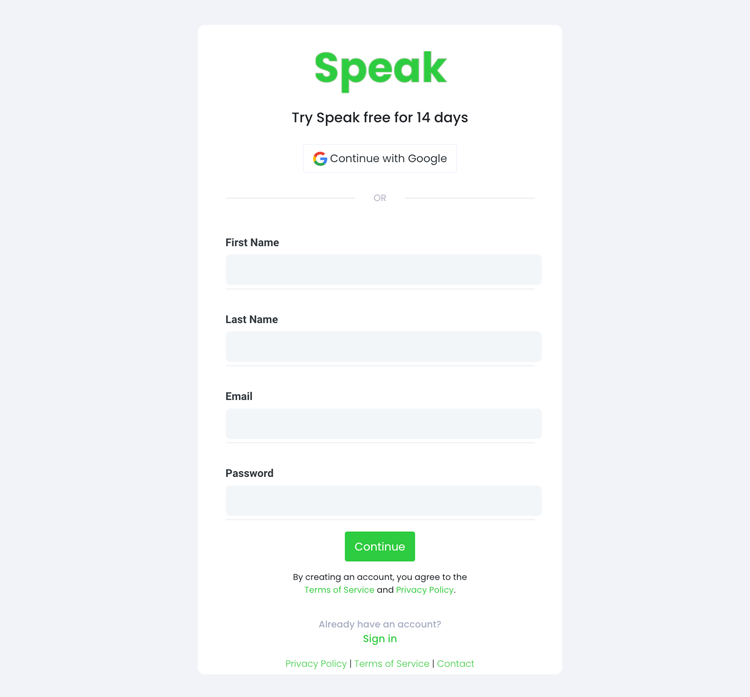
שלב 1: צור את חשבון Speak שלך
כדי להתחיל את התמלול והניתוח שלך, תחילה עליך לעשות זאת צור חשבון Speak. אל דאגה, זה סופר קל לעשות!
Get a 7-day trial with trial credits for audio and video transcription included when you sign up for Speak.
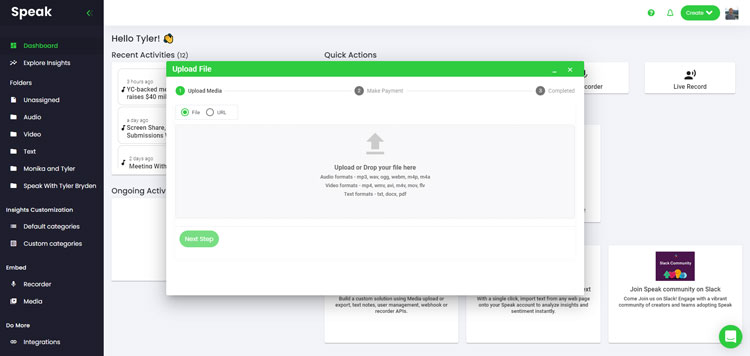
Speak ימצא אוטומטית את הקובץ, יחשב את האורך וייבא את הסרטון.
אם אתה משתמש בסרטוני YouTube, אנא ודא שאתה משתמש בקישור המלא ולא בקטע YouTube המקוצר. בנוסף, הקפד להסיר את שם הערוץ מכתובת האתר.
דבר אינטגרציות
כאמור, Speak מכיל גם מגוון אינטגרציות עבור זום, זאפייר, Vimeo ועוד שיעזרו לך לתמלל את המדיה שלך באופן אוטומטי.
ספריית האינטגרציות הזו ממשיכה לגדול! יש לך בקשה? תרגישו מעודדים לשלוח לנו הודעה.
שלב 3: חשב ושלם את הסכום באופן אוטומטי
Once you have your file(s) ready and load it into Speak, it will automatically calculate the total cost (trial credits are included in the 7-day trial, so take advantage of them!).
אם אתה מעלה נתוני טקסט ל-Speak, אינך צריך כרגע לשלם כל עלות. רק הניתוח של Speak Magic Prompts ייצור עמלה שתפורט להלן.
Once you use your trial credits or need Speak Magic Prompts, you can top up credits (1 credit = US$1) or subscribe to Pro at US$25 per user per month, or US$20 per user per month billed annually. See the עמוד תמחור לפרטים.
Step 4: Wait for Speak to Analyze Your Sentiment Analysis Data
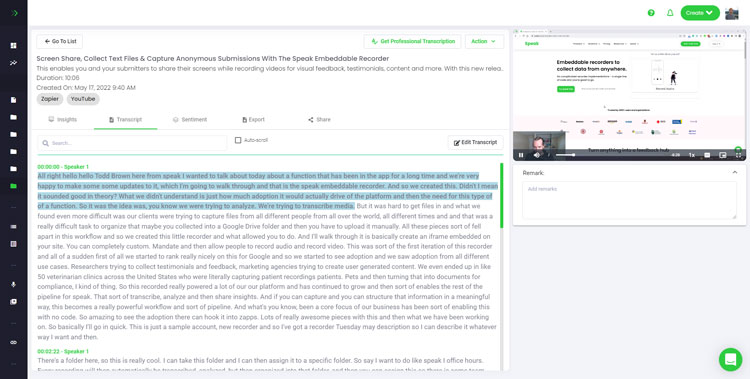
אם אתה מעלה אודיו ווידאו, תוכנת התמלול האוטומטית שלנו תכין את התמליל שלך במהירות. לאחר השלמתו, תקבל הודעת דוא"ל שהתמליל שלך הושלם. דוא"ל זה יכיל קישור חזרה לקובץ כדי שתוכל לגשת לנגן המדיה האינטראקטיבי עם פורמטי התמלול, הניתוח והייצוא מוכנים עבורך.
אם אתה מייבא קובצי CSV או מעלה קבצי טקסט, Speak בדרך כלל ינתח את המידע הרבה יותר מהר.
שלב 5: בקר בקובץ או בתיקייה שלך
Speak מסוגל לנתח גם קבצים בודדים וגם תיקיות נתונים שלמות.
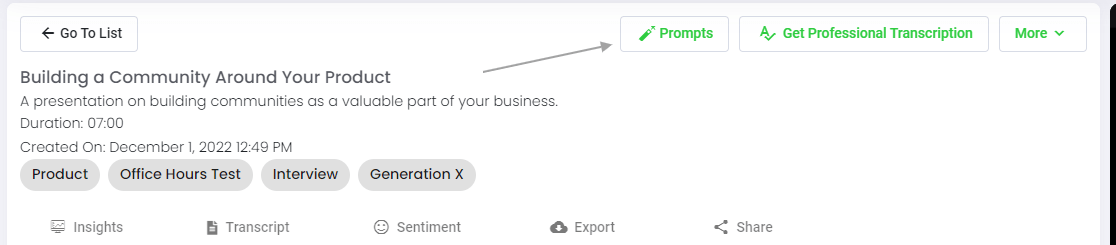
כאשר אתה צופה בכל קובץ בודד ב-Speak, כל מה שאתה צריך לעשות הוא ללחוץ על כפתור "הנחיות".
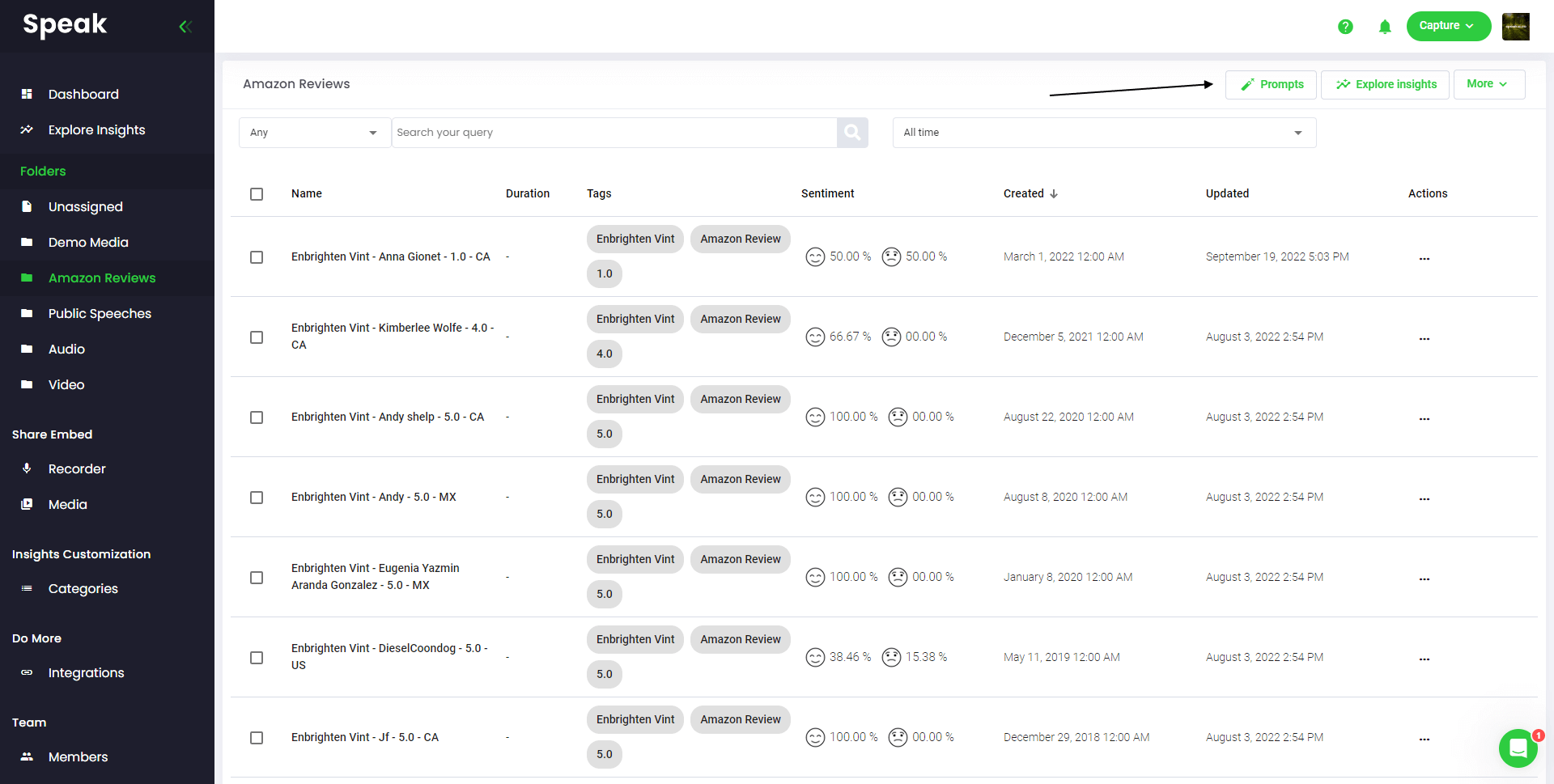
אם אתה רוצה לנתח קבצים רבים, כל מה שאתה צריך לעשות הוא להוסיף את הקבצים שאתה רוצה לנתח לתיקיה בתוך Speak.
אתה יכול לעשות זאת על ידי הוספת קבצים חדשים לתוך Speak או שאתה יכול לארגן את הקבצים הנוכחיים שלך בתיקייה הרצויה שלך עם פונקציונליות העריכה הקלה של התוכנה.
Step 6: Select Speak Magic Prompts To Analyze Your Sentiment Analysis Data
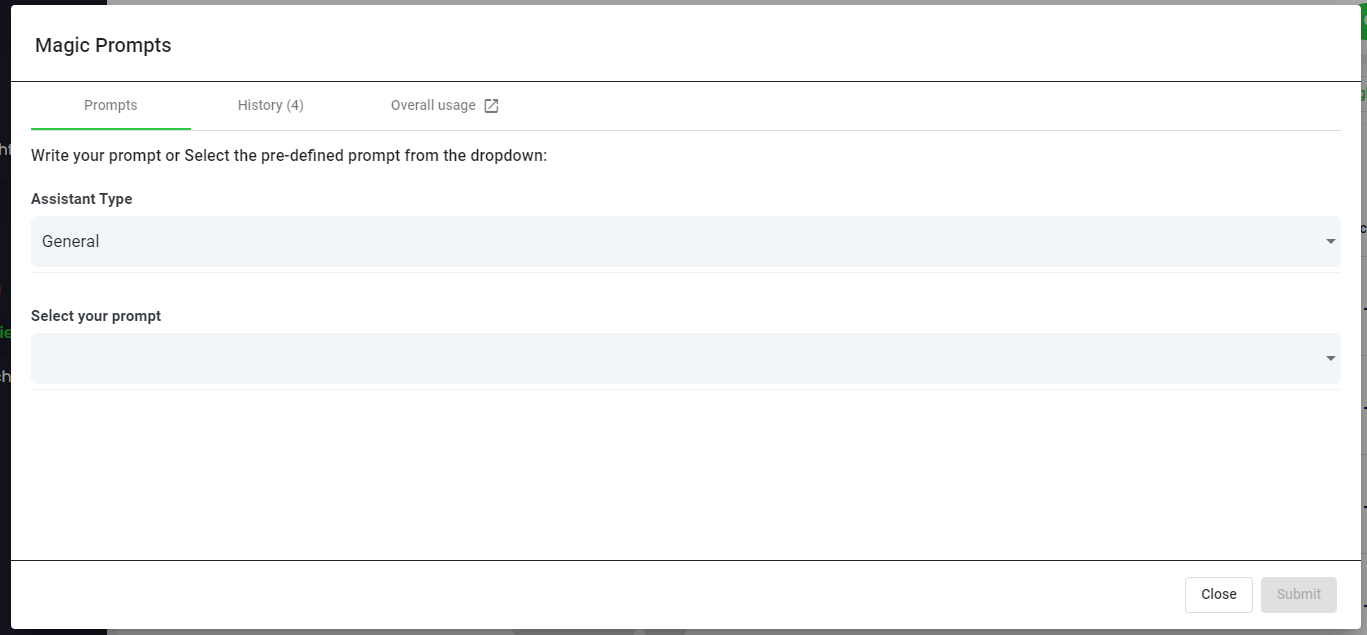
מהן הנחיות קסם?
Speak Magic Prompts ממנפים חדשנות במודלים של בינה מלאכותית המכונים לעתים קרובות "AI מחולל".
מודלים אלה ניתחו כמויות אדירות של נתונים מרחבי האינטרנט כדי להבין את השפה.
עם ההבנה הזו, "דגמי השפה הגדולים" הללו מסוגלים לבצע משימות מכופפות תודעה!
עם Speak Magic Prompts, כעת תוכל לבצע את המשימות הללו בנתוני השמע, הווידאו והטקסט בחשבון Speak שלך.
שלב 7: בחר את סוג העוזר שלך
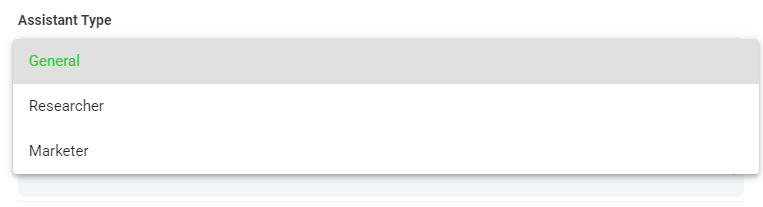
כדי לעזור לך לקבל תוצאות טובות יותר מ-Speak Magic Prompts, Speak הציגה את "סוג עוזר".
סוגי עוזרים אלו מוגדרים מראש ומספקים הקשר למנוע המהיר לקבלת תפוקות תמציתית ומשמעותית יותר בהתבסס על הצרכים שלך.
כדי להתחיל, כללנו:
כְּלָלִי
חוֹקֵר
משווק
בחר את סוג העוזר הרלוונטי ביותר מהתפריט הנפתח.
שלב 8: צור או בחר את ההנחיה הרצויה שלך
להלן כמה דוגמאות להנחיות שתוכל להחיל על כל קובץ כעת:
צור ניתוח SWOT
תן לי את פריטי הפעולה המובילים
צור סיכום רשימת תבליטים
ספר לי את הבעיות המרכזיות שנותרו ללא פתרון
ספר לי אילו שאלות נשאלו
צור הנחיות מותאמות אישית משלך
מודאל יופיע כך שתוכל להשתמש בהנחיות המוצעות שחלקנו למעלה כדי לקבל באופן מיידי ובקסם את התשובות שלך.
אם יש לך הנחיות משלך שברצונך ליצור, בחר "בקשה מותאמת אישית" מהתפריט הנפתח ותיבת טקסט נוספת תיפתח בה תוכל לשאול כל דבר שתרצה מהנתונים שלך!
שלב 9: סקור ושתף תגובות
Speak תיצור עבורך תגובה תמציתית בתיבת טקסט מתחת לתפריט הנפתח של הבחירה.
בדוגמה זו, אנו מבקשים לנתח את כל נתוני הראיונות בתיקייה בבת אחת עבור מי שמסתפקים במוצר המוביל.
אתה יכול בקלות להעתיק את התגובה הזו למצגות, לתוכן, למיילים, לחברי צוות ועוד!
Speak Magic Prompts As ChatGPT For Sentiment Analysis Data Pricing
Our team at Speak AI continues to optimize the pricing for Magic Prompts and Speak as a whole.
כרגע, כל מי שנמצא ב-7 ימי הניסיון של Speak מקבל 100,000 תווים כלולים בחשבון שלו.
אם אתה צריך עוד דמויות, אתה יכול בקלות לכלול Speak Magic Prompts בתוכנית שלך כשאתה יוצר מנוי.
אתה יכול גם לשדרג את מספר התווים בחשבון שלך אם כבר יש לך מנוי.
דצמבר שמח! Speak AI מסיימת את 2025 עם תכונות מסיביות ומבוקשות מאוד. אחסנו את הנכסים שלכם בדומיינים מותאמים אישית עם תווית לבנה, שלבו את Speak ישירות עם Slack לתמלולים מיידיים וצ'אט מבוסס בינה מלאכותית, והתאימו אישית את הסקרים שלכם עם ערכות נושא וגופנים חדשים. צללו פנימה כדי לראות את כל השיפורים ולנצל את מבצעי סוף השנה המדהימים שלנו לפני שהמחירים ישתנו!
חדשאתה יכול כעת לנתח טון וחזותיות ב-Speak AI.ניתוח אודיו: נתח טון, רגש, אנרגיה ועוד.חזותיות: חלץ שפת גוף, תוכן שיתוף מסך, ביטויי פנים ועוד.קבל תובנות עמוקות יותר מניתוח על סמך תמלול בלבד.פתח רמה חדשה לחלוטין של תובנה עם ניתוח אודיו וידאו.הזמן הדגמה כדי לראות זאת על השיחות שלך.אתה יכול כעת לנתח טון וחזותיות ב-Speak AI. ניתוח אודיו: נתח טון, רגש, אנרגיה ועוד. חזותיות: חלץ שפת גוף, תוכן שיתוף מסך, ביטויי פנים ועוד. קבל תובנות עמוקות יותר מניתוח על סמך תמלול בלבד. פתח רמה חדשה לחלוטין של תובנה עם ניתוח אודיו וידאו. הזמן הדגמה כדי לראות זאת על השיחות שלך.הזמן הדגמה




 English
 Español
 Français
 Italiano
 العربية
 Português do Brasil
 Nederlands
 Deutsch
 עִבְרִית
 Русский
 日本語
 Polski
 Čeština
 Українська
 Slovenščina
 Svenska
 Ελληνικά
 Norsk bokmål
 简体中文
 Türkçe
 Català
 Magyar
 한국어
 Slovenčina
 Suomi